
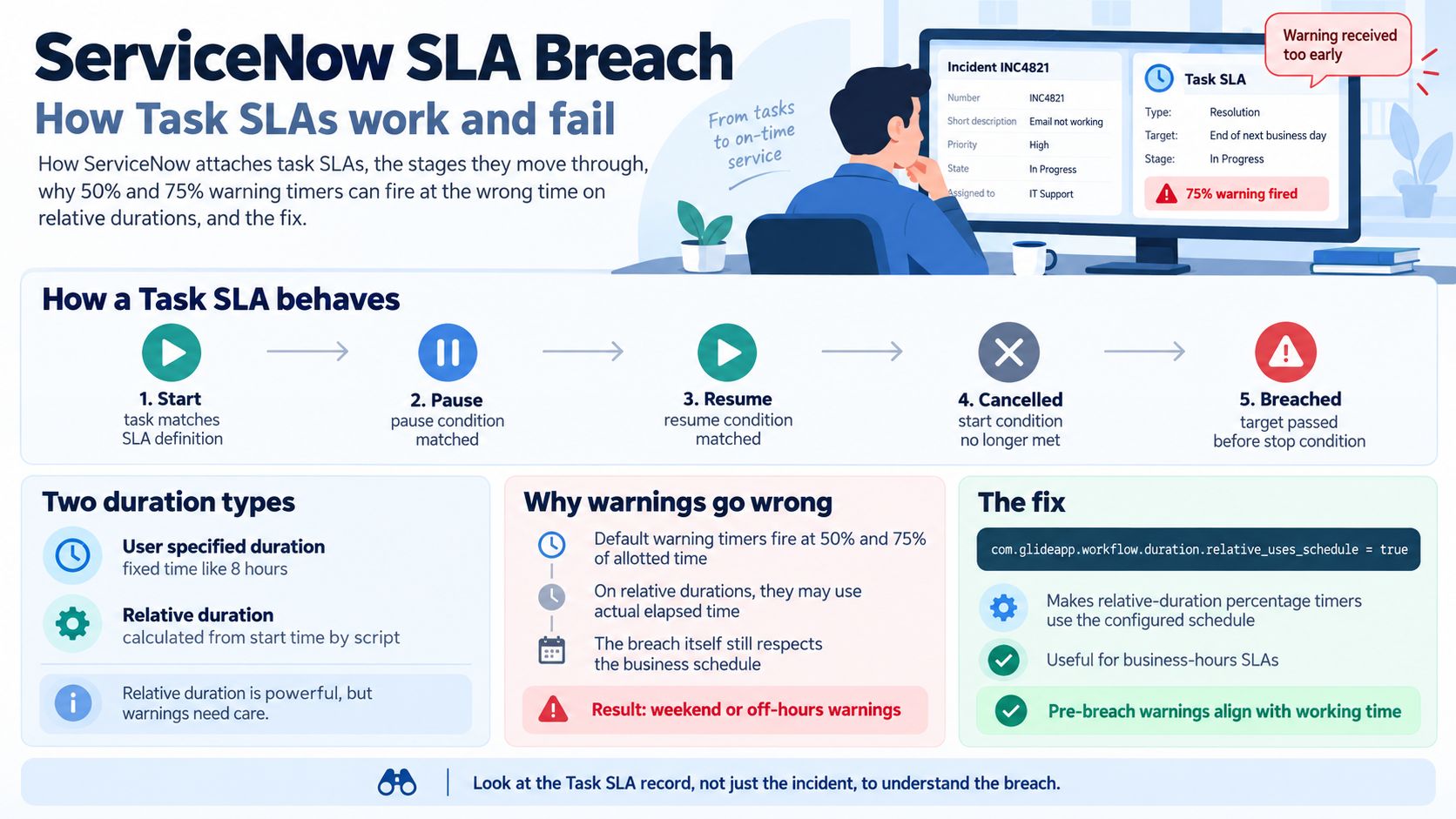
ServiceNow does not really have SLAs on tickets. It has SLA definitions, which manufacture task SLA records that then live their own lives beside the task. Almost every confusing breach in ServiceNow makes sense once you stop looking at the incident and start looking at the task SLA attached to it.
A ServiceNow SLA breach happens when a task SLA — the record created on a task by a matching SLA definition — passes its target. The definition holds the conditions that attach, pause, resume, stop and cancel it, plus the workflow that raises warnings. Warnings come from percentage timers, typically at 50% and 75% of allotted time. The trap: on relative durations those timers ignore your schedule by default and count actual elapsed time instead.
SLA Definitions and Task SLAs Are Different Things
An SLA definition is configuration. It holds the timings, the conditions and the workflow needed to create and progress task SLAs. A task SLA is the live record produced when a task matches that definition — it is the thing that actually runs, pauses and breaches.
One task can carry several task SLAs at once: a response SLA and a resolution SLA, or a different pair per assignment group. So “did this incident breach?” is an incomplete question. The answer is always which task SLA breached, and a single incident can have one green and one red at the same moment.
The Stages a Task SLA Moves Through
The definition’s conditions drive every transition, and each one fires from an update to the underlying task:
| Transition | What causes it |
|---|---|
| Start | The task matches the definition’s start condition, and the SLA attaches. |
| Pause | A task update matches the pause condition; time stops accumulating. |
| Resume | A later update matches the resume condition and the clock restarts. |
| Cancelled | The task changes so that the start conditions are no longer met. |
| Breached | The allotted time runs out before a stop condition is reached. |
The SLA timeline is the tool worth knowing about here. It draws the whole life of a task SLA, shading yellow, then orange, then red as time runs out. Triangles mark task updates that caused a stage change and a white diamond marks a cancellation, and the detail pane tells you which condition was matched at each point.
That last part is why the timeline beats guesswork. When an SLA paused at a moment nobody expected, the timeline names the condition responsible rather than leaving you to reverse-engineer it from the audit history.
Two Duration Types, and They Behave Differently
ServiceNow offers two ways to express how long a target lasts:
- User specified duration — a fixed length such as 8 hours. It accepts days, hours, minutes and seconds, and converts days into 24-hour blocks rather than working days.
- Relative duration — calculated from the task SLA’s start time by a script. Shipped examples include Breach on Due Date, End of next business day and Next business day by 4pm.
Relative durations are the reason ServiceNow can express targets the other service desks cannot. “Resolve by 4pm the next working day” is a real commitment that no fixed number of hours models correctly, and it is a genuine strength of the platform.
Percentage Timers Are the Warning Mechanism
ServiceNow does not wait for a breach to tell you. The default SLA workflow raises events at percentages of the allotted time — commonly 50% and 75% — and those events drive notifications.
This is proportional rather than absolute, which is the right shape for a service desk running many different targets. A 50% warning on a four-hour target arrives two hours in; on a 30-minute target it arrives at 15 minutes. You configure the proportion once instead of setting a separate offset per priority.
The Schedule Trap on Relative Durations
Here is the one worth checking in your own instance today, because it is silent and it breaks the warnings rather than the breach.
By default, relative durations ignore the configured schedule when calculating percentage timers. The 50% and 75% events are computed against actual elapsed time rather than business elapsed time. The breach itself still respects the schedule — the warnings do not.
On a business-hours SLA raised late on a Friday, the percentage timers burn through the weekend while nobody is working. Your 75% warning fires on Saturday night into an empty queue, and on Monday morning the ticket is already at or past its target with no useful warning ever having been seen. The breach looks like a team failure; it was a calculation mismatch.
The fix is a system property rather than a change to each SLA:
com.glideapp.workflow.duration.relative_uses_schedule = true
Set that and relative durations calculate their percentage timers against the schedule, which is almost certainly what you intended when you configured the schedule in the first place.
How This Compares
Pre-breach warning is where the mainstream service desks differ most:
| Tool | Native warning before breach |
|---|---|
| ServiceNow | Yes — percentage timers, typically 50% and 75%, via the SLA workflow. |
| Freshservice | Yes — escalation levels inside the SLA policy. |
| Jira Service Management Cloud | Yes — an SLA threshold breached trigger with a configurable offset. |
| Jira Service Management Data Center | No — scheduled JQL filter subscriptions instead. |
| Zendesk | No — hourly automations only, never at the deadline. |
Why ServiceNow SLAs Go Wrong
In rough order of how often each turns out to be the cause:
- The percentage timers were computed off-schedule. The property above, on a relative duration.
- The SLA never attached. The start condition did not match, so no task SLA exists and the incident looks permanently compliant.
- A pause condition is too broad. The clock spends more time paused than anyone realises and the reported duration bears no relation to the customer’s wait.
- Cancellation was silent. A field changed so start conditions stopped matching, the task SLA cancelled, and nothing raised a flag.
- Several task SLAs, one conversation. Reporting counted a different task SLA from the one the service owner was talking about.
As with SLA breaches in any ticketing system, configuration is the cause far more often than speed.
Where InfraCue Fits
Full disclosure: this guide is published by InfraCue, so treat it as positioning rather than a neutral recommendation. ServiceNow is the most powerful system described in this series and nothing here suggests otherwise — relative durations, percentage timers and the SLA timeline are genuinely excellent. It also assumes a platform team, an implementation budget and admins who know what a system property is.
InfraCue is built for the IT team that cannot justify that. SLA targets by priority and category, device health from Network Pulse beside the tickets those devices caused, asset lifecycle, spares inventory and a NOC wallboard in one console, with locations first-class — tickets route by location, assets belong to one, dashboards filter per branch. Pricing is in INR from ₹2,999 per month with a 30-day trial and no credit card.
This guide is maintained by InfraCue, an IT operations platform with ticketing, SLA tracking and device monitoring in one console. It documents ServiceNow behaviour as described in ServiceNow’s own product documentation and is not affiliated with ServiceNow.